

Hello!! How are you all? Today I’m going to talk about something that’s very useful in everyday life. Yes, I’m talking about renaming files, or how to rename a file or how to change a file name. It might sound like a small thing, but if you work on a computer, laptop, mobile, or the internet, you know how important it is to give files the right names. Whether the old name looks bad, you want to make the file more appealing, or you need to organize a large number of files at once – all of this can be done easily.
In this article, I will explain in a very simple and easy way how to rename a file and change a file name. I’ll cover everything, whether it’s Windows, Mac, Android mobile, or a free online tool. And best of all, it can all be done completely free. I’ll specifically tell you about a fantastic website, picsizereducer. com, where you can not only reduce image sizes but also rename files for free, even in batches (multiple files at once). Let’s begin this exciting journey!
First, let’s understand why renaming files is important. Imagine you have hundreds of photos – like vacation pictures. Your camera or phone gives them boring names like DSC_001, IMG_123. Now, if you rename them to something like “Goa_Trip_2025_Beach” or “Family_Picnic_Delhi,” wouldn’t it be much easier to find them? Whether it’s office documents, presentation files, or music – everything looks organized with the right names. And yes, sometimes changing the file name also helps maintain privacy, like when sharing personal photos. So, learning how to change a file name is definitely worthwhile!
Now let’s get to the main point – how to rename a file on different devices. Let’s start with the easiest methods.
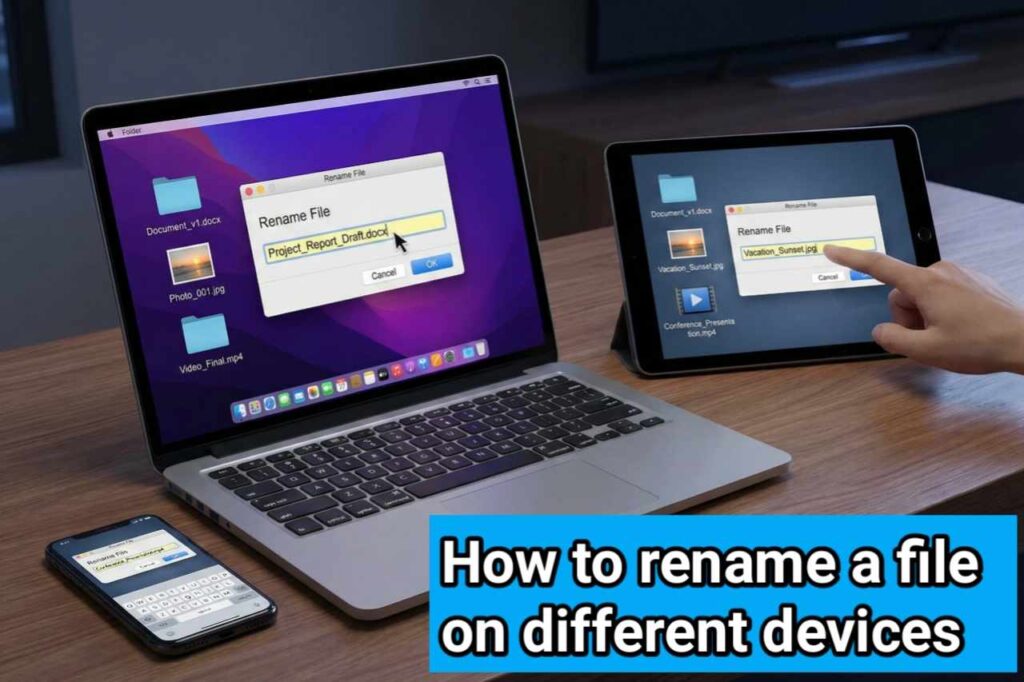
1. How to rename a file on a Windows computer or laptop?
It’s very simple in Windows. Right-click on the file, select the “Rename” option, type the new name, and press Enter. That’s it! If you need to rename multiple files at once, select them all (by holding down Ctrl), then press the F2 key, type the new name – a number will be automatically added to each file, like Photo (1), Photo (2). This method is perfect for how to rename a file in Windows. No software download is needed!
2. How to change a file name on a MacBook or Mac?
It’s easy on a Mac too. Click on the file, then click on the file name in the menu bar at the top to edit it, or right-click and select “Rename”. For batch renaming, open Finder, select multiple files, right-click – select “Rename Items”. Here you can add text, replace text, or add numbering. Completely professional!
3. How to rename a file on an Android mobile?
Open a file manager app on your mobile (like Google’s Files app). Long-press the file, tap the three dots in the menu at the top, select “Rename”. Enter the new name and save it. If your phone has a built-in file manager, use that. How to rename a file on Android anytime, anywhere – it only takes a few seconds!
4. How to rename a file on an iPhone (iOS)?
Open the Files app on your iPhone. Long-press the file, and the “Rename” option will appear. Type the new name and you’re done. This method also works in iCloud Drive. Simple and fast!
These are the basic methods. But what if you need to rename a lot of files, like 100-200 photos at once? That’s where free online tools come in. And here I’ll tell you about an amazing best absolutely free website picsizereducer. com. Friends, platform is a free online website where you can not only reduce the size of your images (compressing them by up to 80% without compromising quality), but also rename your files – all for free! Yes, absolutely free. It has a “File Renamer” tool where you can upload one or multiple files, set a new name, and download them. It supports batch processing, meaning you can rename hundreds of files at once.
How to rename a file or change a file name on Picsizereducer. com?
- Open picsizereducer.com in your browser.
- On the homepage, you’ll see several tools; select “File Renamer”.
- Upload your files (you can also drag and drop).
- Set a new name pattern – for example, add a prefix, add numbering, or replace existing text.
- Preview the changes, then apply.
- Download your newly renamed files.
And the best part – you can also convert images (JPEG to PNG, PNG to JPG, etc.), add watermarks, crop images, and convert them to black and white – all for free! No registration, no limits. Your privacy is also safe; files are deleted after uploading. If you are a photographer, a student, or work in an office, this site is a lifesaver. Renaming files has never been this easy!
Here are some tips that will be helpful:
- Use underscores (_) instead of spaces in file names; this will prevent problems when sharing them online.
- Add the date, such as 2025-12-24_Party_Photo.jpg – this will make sorting easier.
- Don’t accidentally change the file extension (.jpg, .pdf), otherwise the file won’t open.
- Always keep a backup before renaming files.
So, friends, you see how easy it is to rename files and change file names? Just a little practice, and you’ll become a pro! Especially with the help of free sites like picsizereducer. com, everything is free.