
Hello friends!
Have you ever had to send an image via email or WhatsApp, but couldn’t because the file size was too large? Or are the images on your website or blog taking too long to load? If so, this article is for you! Today, we’ll discuss “how to reduce a JPEG file size” and “how to reduce image file size” – that is, how to reduce image size using simple methods.
Don’t worry, you don’t need any technical knowledge. We’ll explain in simple language how to make your work easier.
Why is reducing image size important?
First, let’s understand why reducing image size is so important:
- Faster sharing: Smaller files upload and download faster.
- Space savings: This will save space on your phone, computer, or cloud storage.
- Website Speed: Smaller images are essential for faster website loading, happier visitors, and better rankings on Google.
- Social Media: Most platforms auto-compress large images, which can degrade quality. If you submit the correct size in advance, the quality will be better.
What is “JPEG” and why is it so large?
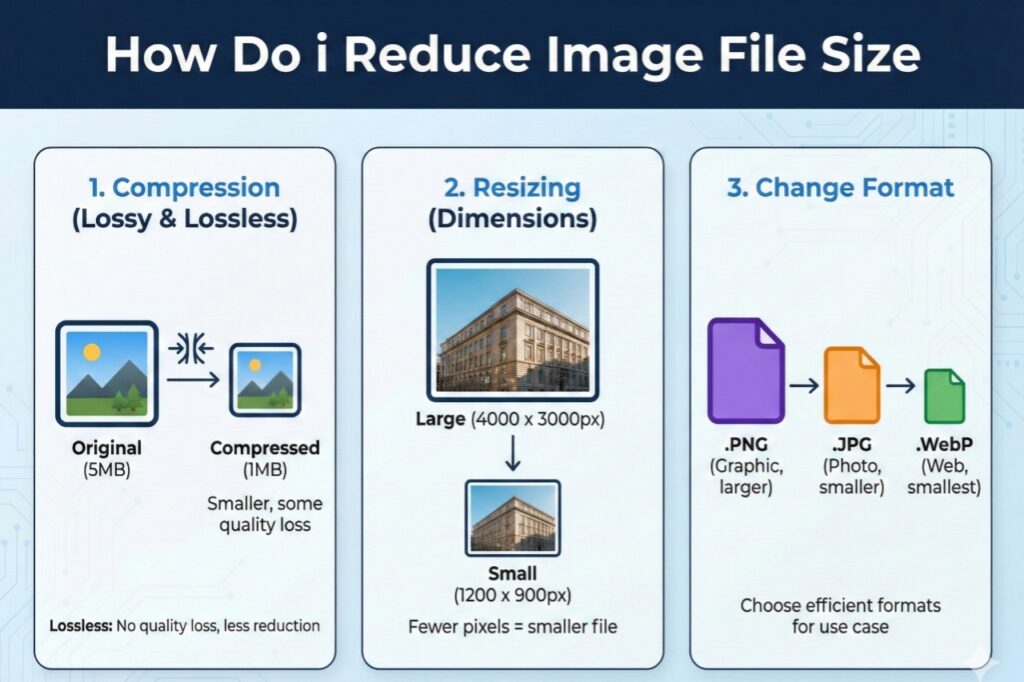
JPEG (or JPG) is the most common image format, widely used for photography and web images. When an image is high-resolution or contains a lot of detail and color, its file size tends to be large. By learning “how do I reduce a JPEG file size,” you’ll be able to manage this large size.
Easy Ways to Reduce Image Size (How do I Reduce Image File Size)
Here are some very simple methods that anyone can do without any special tools
- Reduce Resolution
Resolution refers to the number of pixels in an image. More pixels equals more size. If you’re using the image solely for the web or messaging, a standard size like 1920×1080 pixels is sufficient. You can easily reduce it using your mobile or computer’s built-in editor.
- Adjust the Quality Level
When saving a JPEG image, you get a quality option, which typically ranges from 1 to 100. 100 provides the best quality and the largest file size. For the web, saving at 60-80% quality significantly reduces the size, but the image looks almost as good.
- Crop
Sometimes, an image’s size is large simply because it contains unnecessary background or area. By cropping the image as needed, you can remove unwanted parts and reduce the file size.
The Easiest Way: Use Online Tools
You might be wondering where to find all these settings and how to do it? Don’t worry, there are free and easy online tools available for this. These tools can do the job in seconds.
One of these excellent and easy-to-use websites is picsizereducer.com
PicsizeReducer.com: A Free Solution to All Your Image Problems
The answer to the question “how do I reduce image file size?” has just become even easier. On the picsizereducer.com website, you’ll find excellent tools for reducing image size for free. This website was specifically designed to make people’s work easier.
What are the benefits of using this website?
a- Absolutely free: You don’t have to spend a single penny. You can reduce the size of an unlimited number of images at no charge.
b- Simple interface: No technical knowledge required. Just upload the image, choose the settings, and download.
c- Fast processing: Your image is ready in seconds.
d- No significant quality loss: The tool performs compression in a smart way that keeps the image quality almost unchanged.
e- Safe: Your private images are protected and automatically deleted from the server after a certain period of time.
How to use PicsizeReducer.com? (Step-by-Step Guide)
- Open the website: First, open picsizereducer.com in your browser.
- Upload the image: Click the “Choose File” or “Upload” button and select the JPEG image you want to reduce. You can also upload multiple images at once.
- Choose settings (optional): You may have options to adjust the quality level or output size. If you’re unsure, the default settings produce excellent results.
- Press the “Reduce Size” button: That’s all you need to do. The website will process your image.
- Download the smaller image: Once the process is complete, you’ll receive a download link. Click on it to save your reduced and lighter image.
That’s it! You’ve solved the “how do I reduce a JPEG file size” question without any hassle.
Some more useful tips:
A- Choose the right format: It’s not always necessary to use JPEG. PNG is better for logos or simple graphics, and the WEBP format is now very popular and efficient for the web.
B- Batch processing: If you have a lot of images at once, explore batch processing options on tools like picsizereducer.com, allowing you to reduce them all at once.
Check the result: Before downloading, preview the image to see if the quality is satisfactory.
Conclusion :
So friends, I hope you now understand how to reduce image file size and how easy it is. Whether you’re a student, a blogger, a business owner, or just a regular social media user, using lightweight images will make your work much easier.The next time you need to send or upload an image and it seems too large, don’t panic. Just use picsizereducer.com and get it done in a jiffy, for free.Take advantage of this simple technique and save your precious time and digital space. Happy reducing!